
Wondering how to use frames in Canva?
Frames are a clever way to make your photos more interesting.
There are a few ways you can use them, and lots of ready-made frames to incorporate in designs.
They’re also useful to create interesting shapes with photos to print off for your home.
Let’s dive into the deets.
How to use a frame to crop to a shape
The first thing you can do with frames in Canva is to crop a photo to a creative shape. This also works with textures and patterns.
Select the side panel and go to the Elements tab.
Scroll down until you see Frames and select the ‘See all’ option to view the full range.
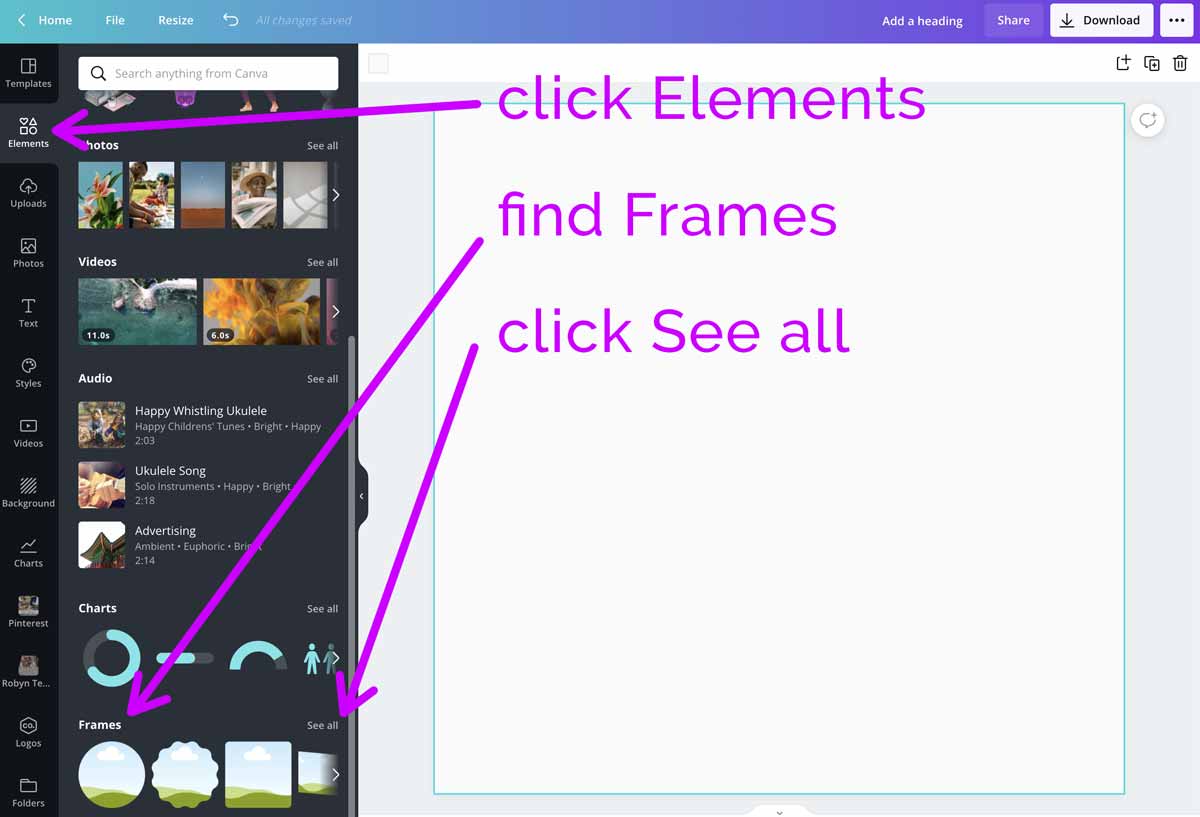
Here you’ll find all the different frames that you can add photos to. You can tell they’re ready to add photos as they have that cloud and hill image that you see in Canva’s layout grids.
Select the one you want to work with to add it to your design.
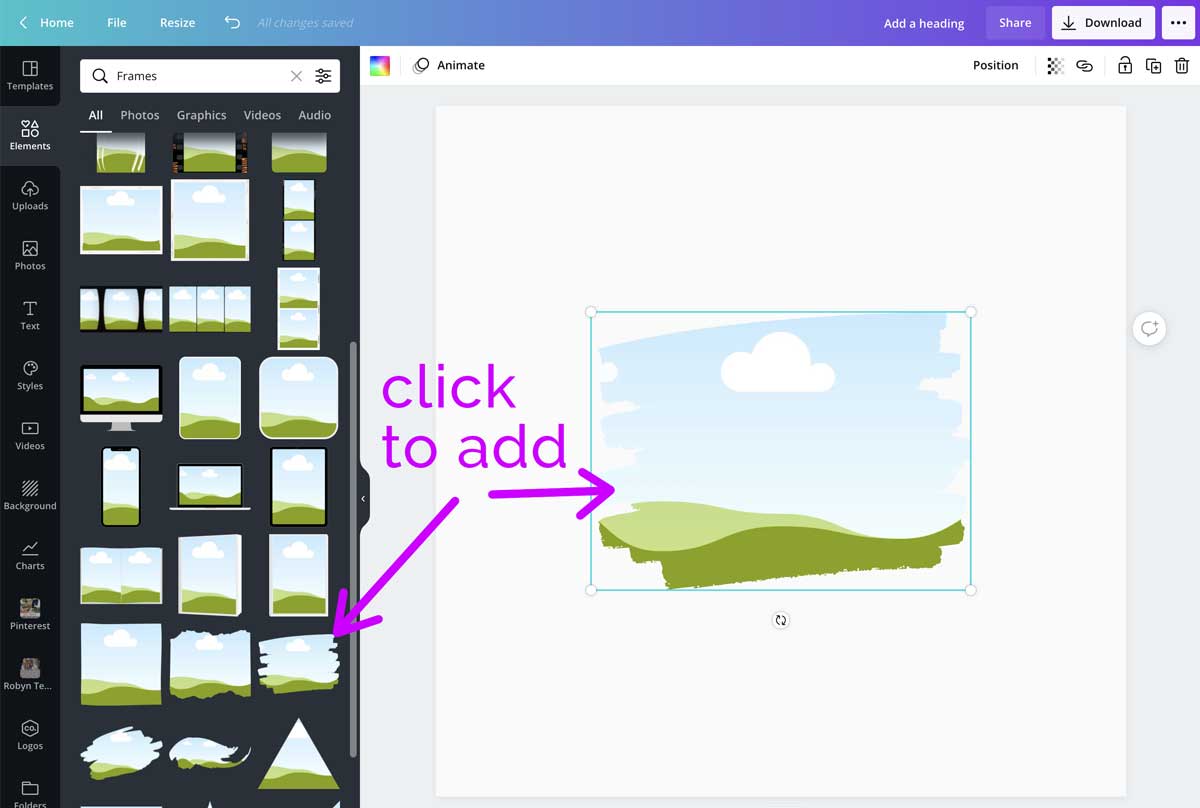
Adjust it to the size you want it to be on the canvas. Then you’re ready to add your image.
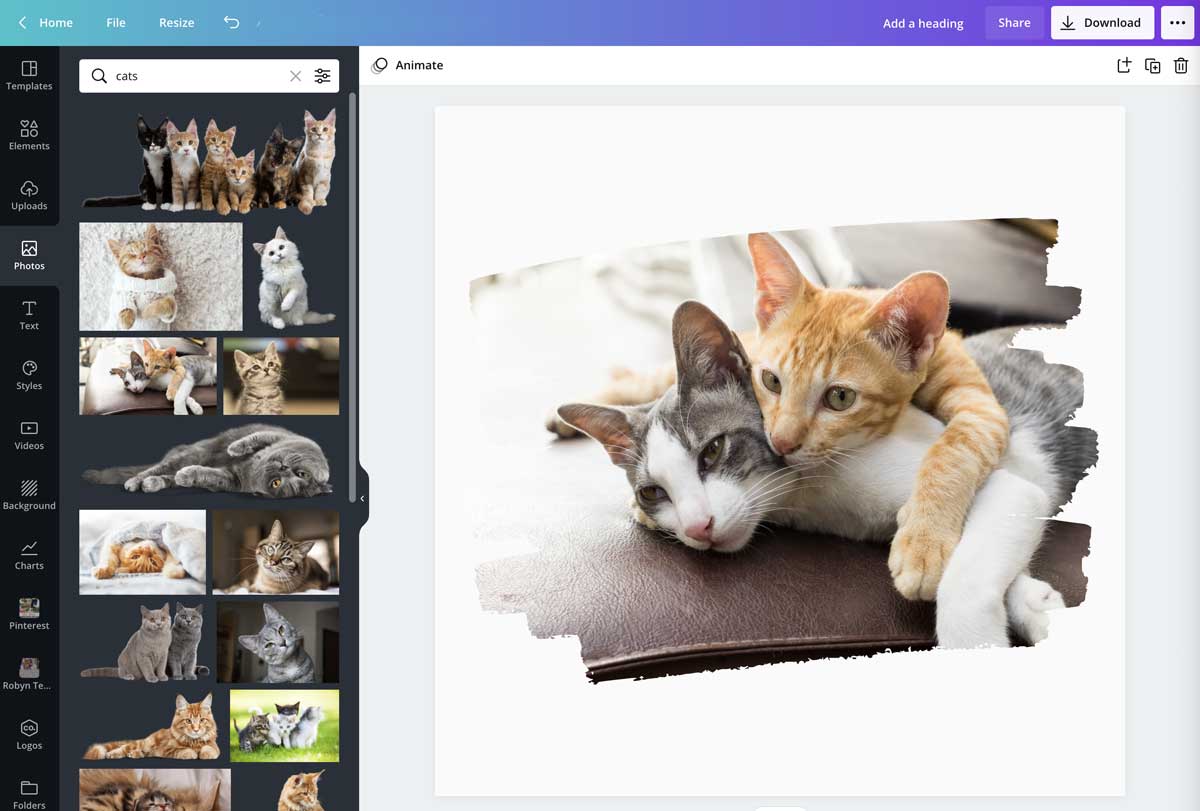
Either select Photos to use a stock image from Canva, or use the Folders option to pull up a photo you’ve uploaded.
Drag and drop the image into the frame.
If you want to adjust where the photo sits in the frame, double click for the editing panel.
Move the image where you want it. You can see the outline of the frame behind the image so you can get it just right.
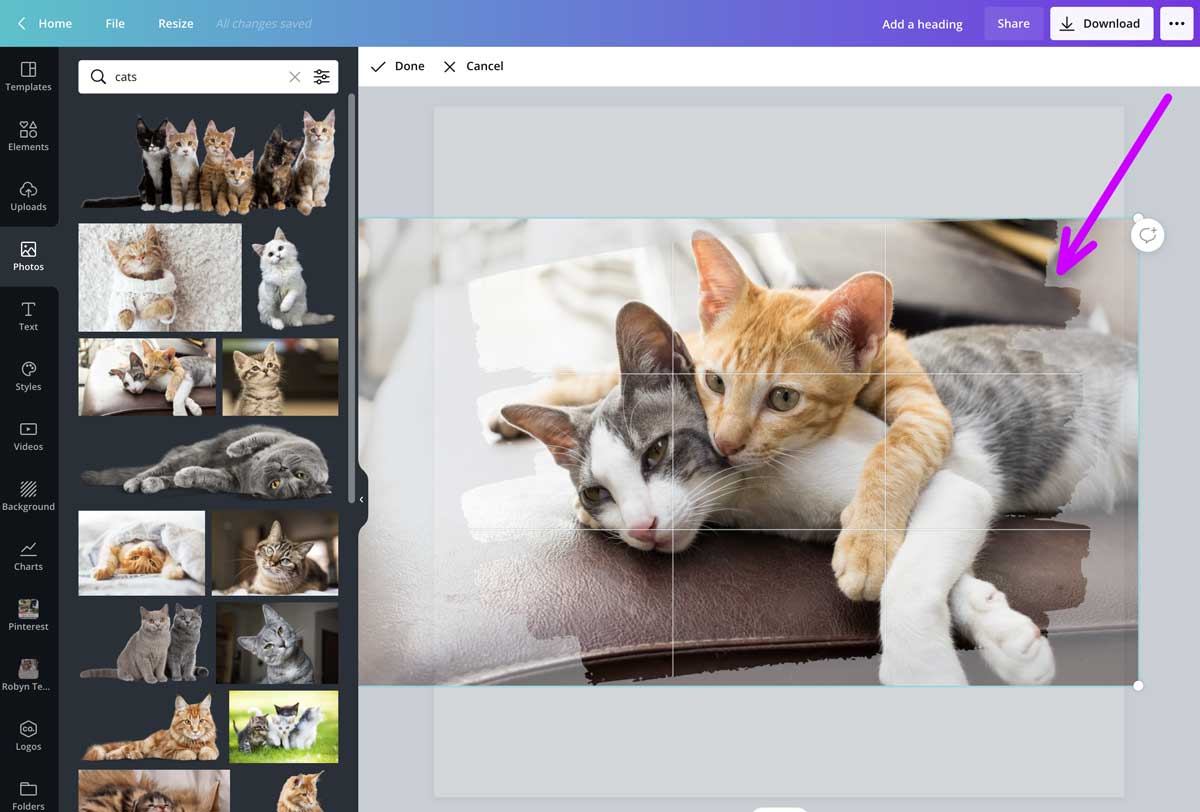
Then click Done, and the image will be moved into position.
You can also add more than one frame to a canvas, and position each where you want it.
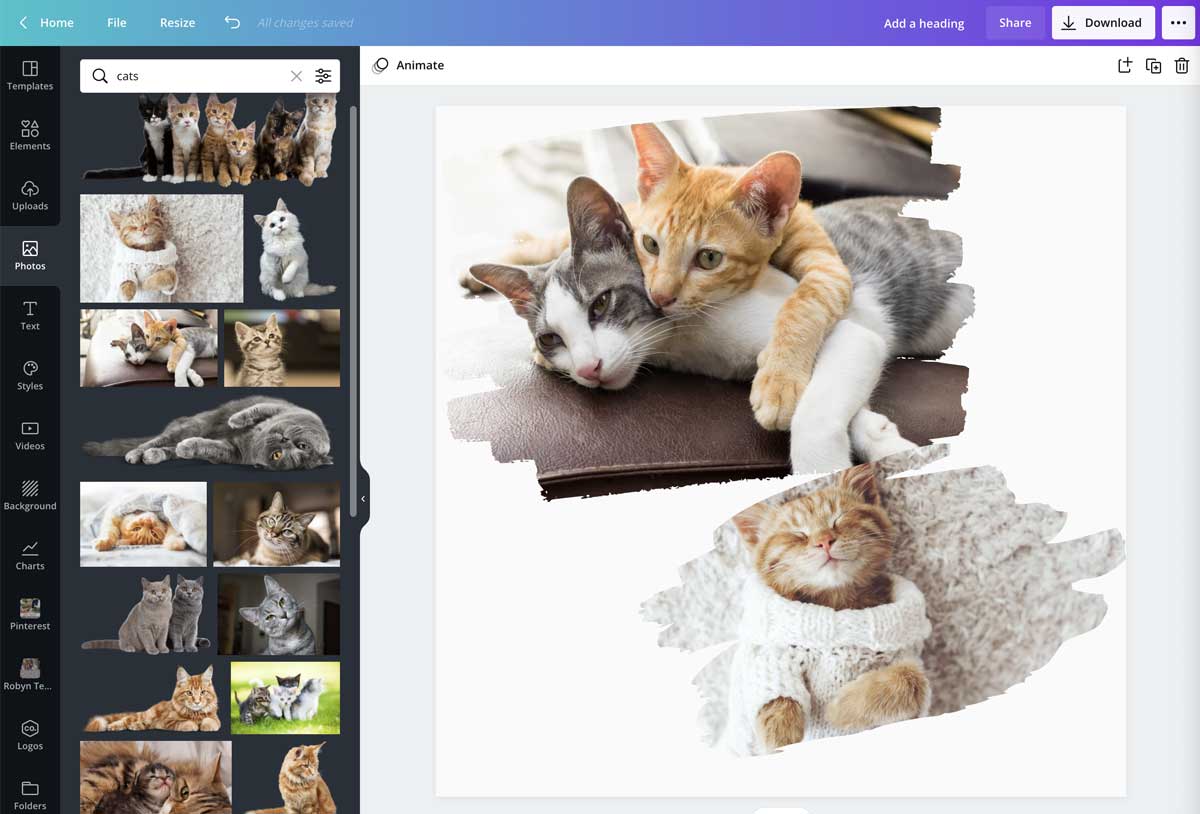
If you want to add things like filters, effects, or even change the transparency of the photos, you can do this as usual within the frame.
Videos can also be added to frames, or you can use a simple color or a pattern. All kinds of options to make your designs unique!
How to add a frame around a photo
The other thing you can do with frames in Canva is to add one around a photo. This is a bit like you would do with a frame on your wall.
There are plenty of different ready-made frames in Canva that you can search out, and add around a photo. These are found in the same place as the other frames – just keep scrolling down.
Add the one you want, then drop in your photo as before.
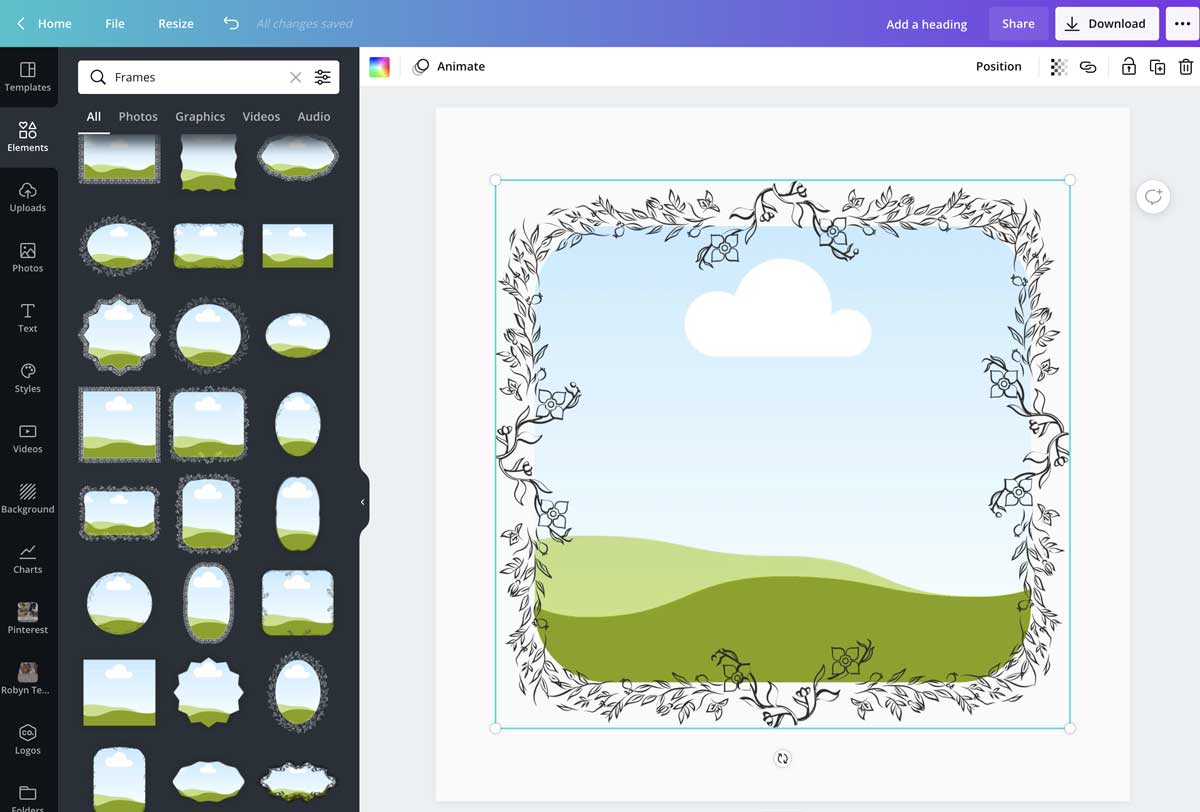
This will add the photo in the background and the frame to the front. If there’s a shape to the frame, it will also crop the image accordingly.
How to make a color fill frame
With frames, you can add photos, video, or patterns.
Or you can simply make the background into a color. This is useful if you want to add text or layer a photo on top.
Select the frame and then select the rainbow square in the top left corner to choose a color.
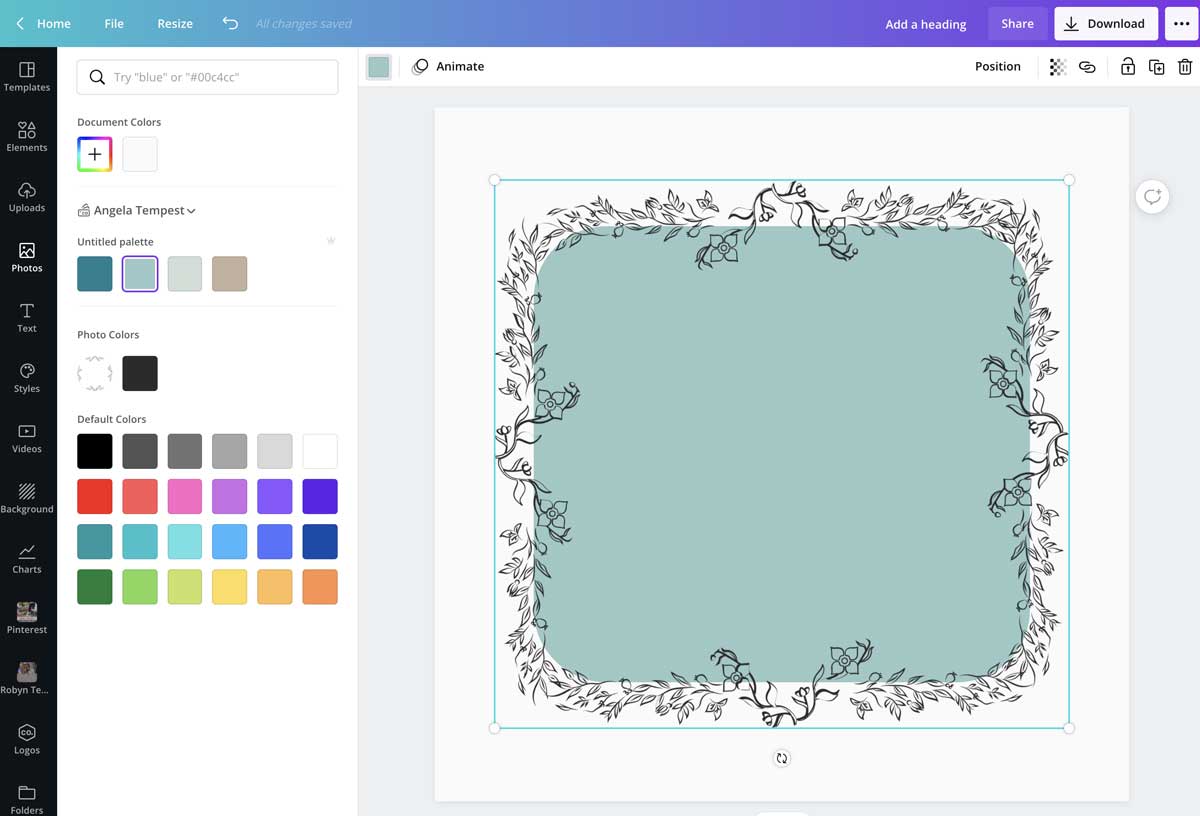
With some frames, there’s also the option to change the color of the frame itself.
If you can’t, you may need to add a background to make the frame visible, especially if it’s white.
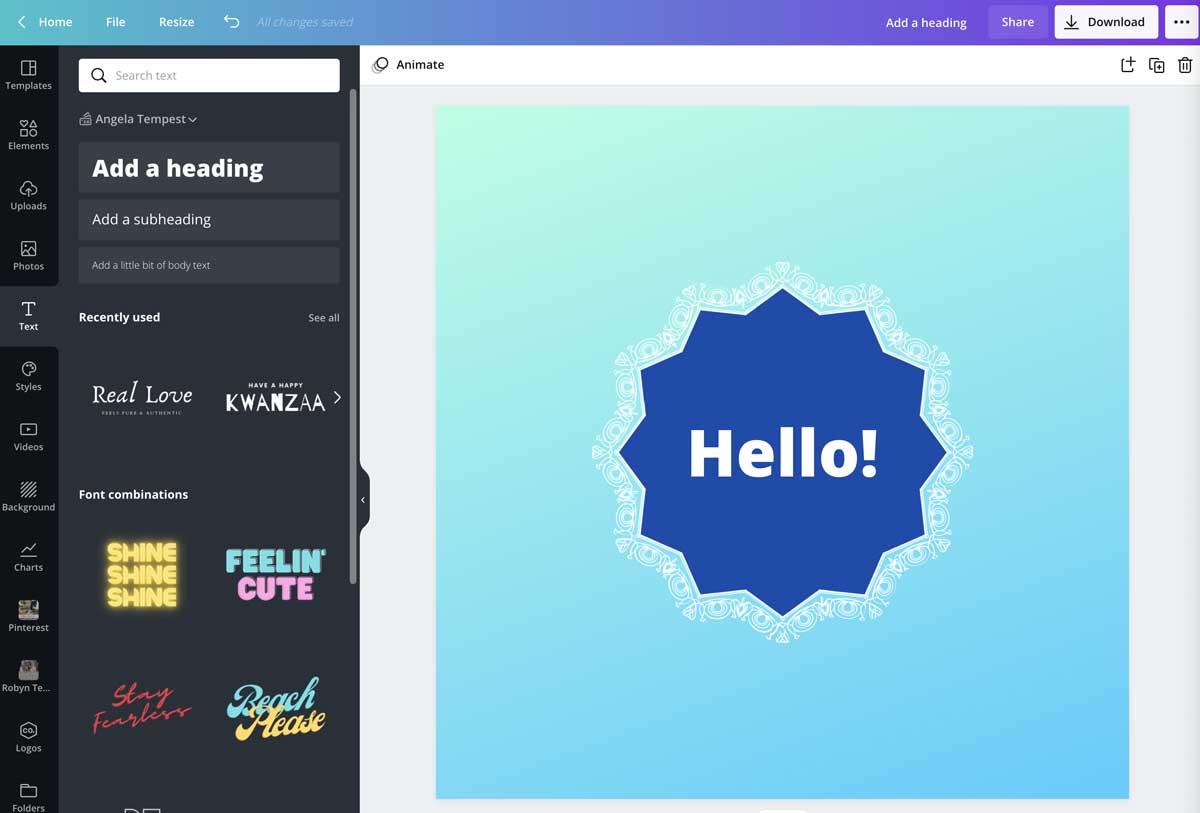
Then you can simply add text over the top to make a nice, framed word graphic.
Have fun with frames
Canva frames come in all styles – from wood frames to funky shapes.
You can use them to make photos look more interesting, and add that unique touch to your designs.
You can even design a gallery wall for your home.
They also work to make an image background for text and other elements.
Many are available in the free version of Canva. You’ll find there’s a bigger range for Canva Pro users.
So how could you use frames to make your designs more interesting?
Disclosure: If you purchase a plan, I may earn a commission, at no cost to you.
Want more tutorials?
Learn keyboard shortcuts and more in my ultimate guide on how to use Canva!
The post How to Use Frames in Canva for a Unique Look You’ll Love appeared first on Louise Myers Visual Social Media.


0 Commentaires