Want to know how to crop in Canva?
Cropping images and elements is a key part of getting your designs just right.
And with Canva, there are some easy-to-use tools to do this.
Plus a few helping hands with other features built into the software.
Using these, you can get any design to look just as you want it.
Let’s learn now!
How to crop a photo in Canva
One of the most common things you’ll need to crop is a photo.
Cropping is the basic photo editing tool. This applies to ones you’ve taken and uploaded, or a stock photo you’re using.
Often, you’ll want just a part of the photo, or to focus in on a certain element. But that’s no problem, because photo cropping in Canva is very simple.
First, create a canvas and add the photo from either uploads or the Photos section of the menu.
Then click the ‘crop’ tool on the top menu. Or double click the photo to access the crop tool.
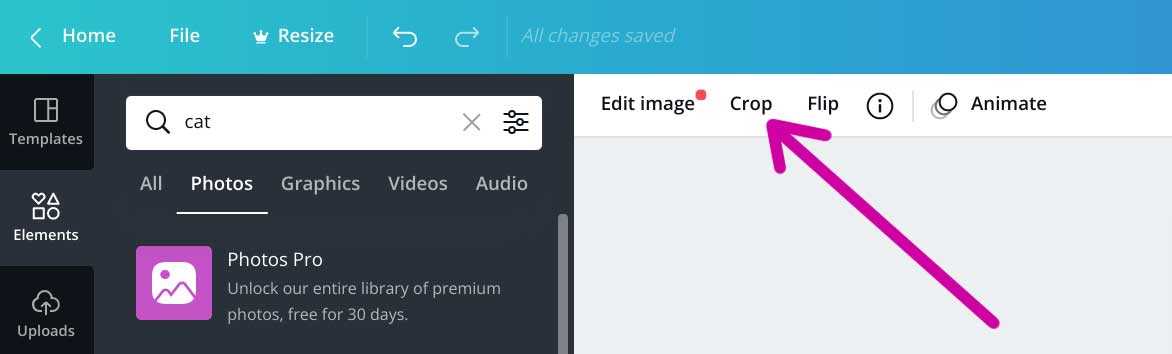
Now you can use the little white L-shaped marks in the corners to make the image box size smaller or a different shape.
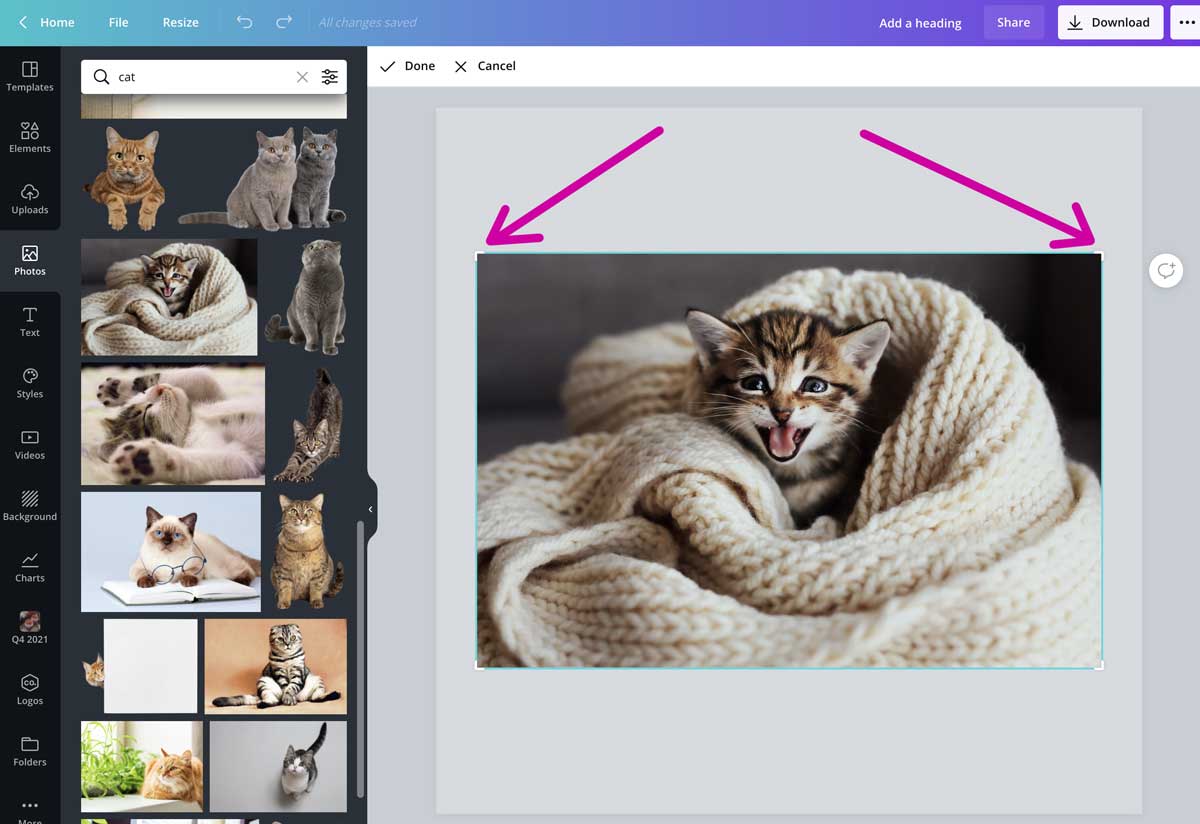
Pulling diagonally on the L will reduce the photo box size proportionally, and sliding it vertically or horizontally will change its shape, or aspect ratio.
Once you’ve reduced the box size, you’ll see white dots in the corners of the original image that are now cropped out. Resize the photo within the crop box you created by pulling a circle diagonally. It will reduce or enlarge proportionally so it doesn’t get distorted.
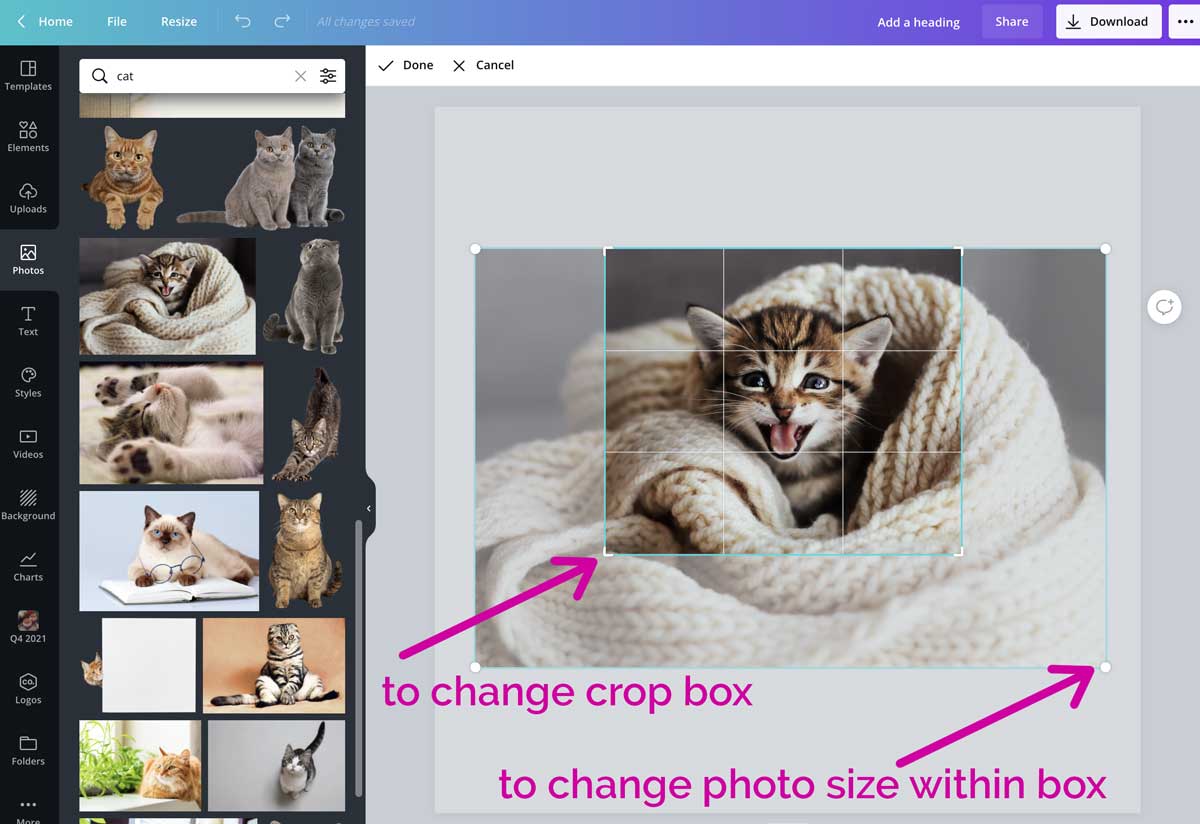
Next, click and hold the photo to drag it into the exact cropping you want.
You can continue to change the crop box size and shape with the L corners until you’re pleased with the results. The click Done and your changes will be saved.
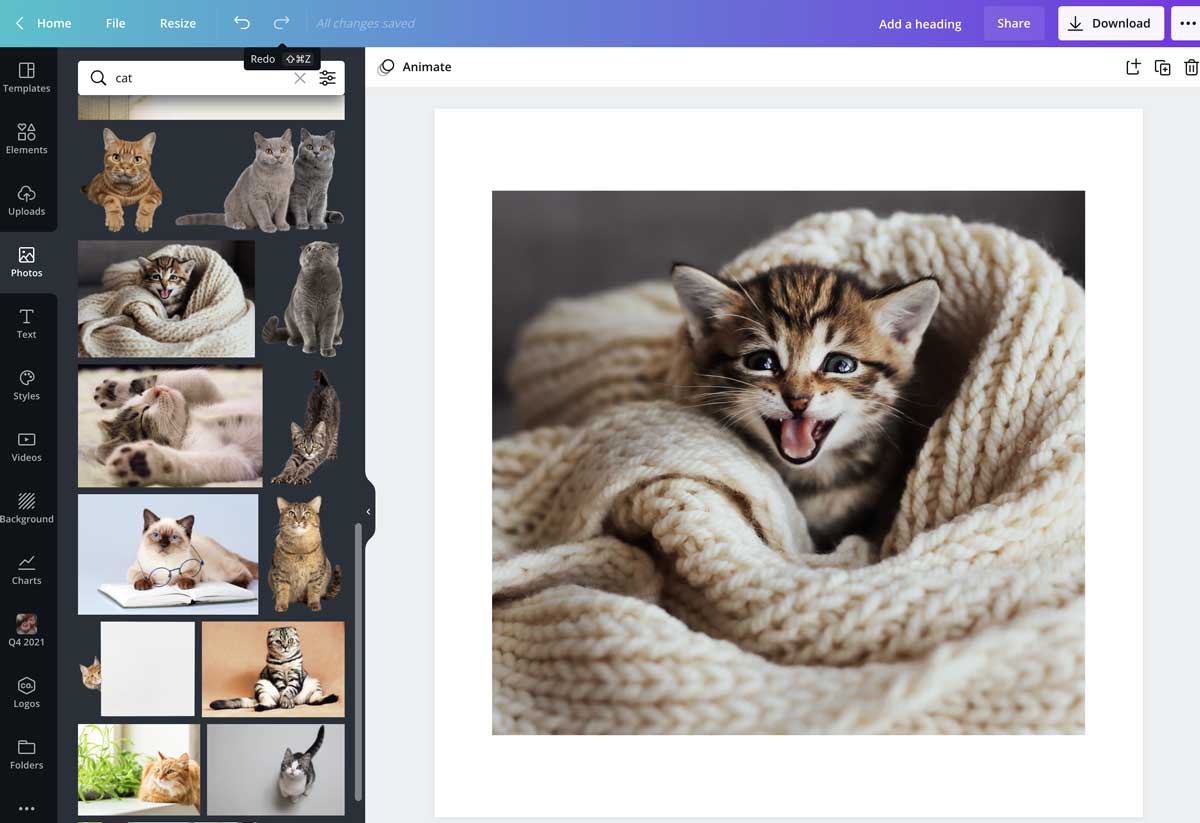
If you simply want to make a photo fill a space, you can use a frame or grid instead. Frames are a great way to make a photo cut into a shape.
Wondering how to crop to a circle in Canva? A circle frame is the best way to get a round photo.
Learn more about how to use frames in Canva.
How to crop elements in Canva
In a similar way to photos, you can also use the basic crop on elements like illustrations.
For example, here we have a series of flowers – but maybe we don’t need all of them.
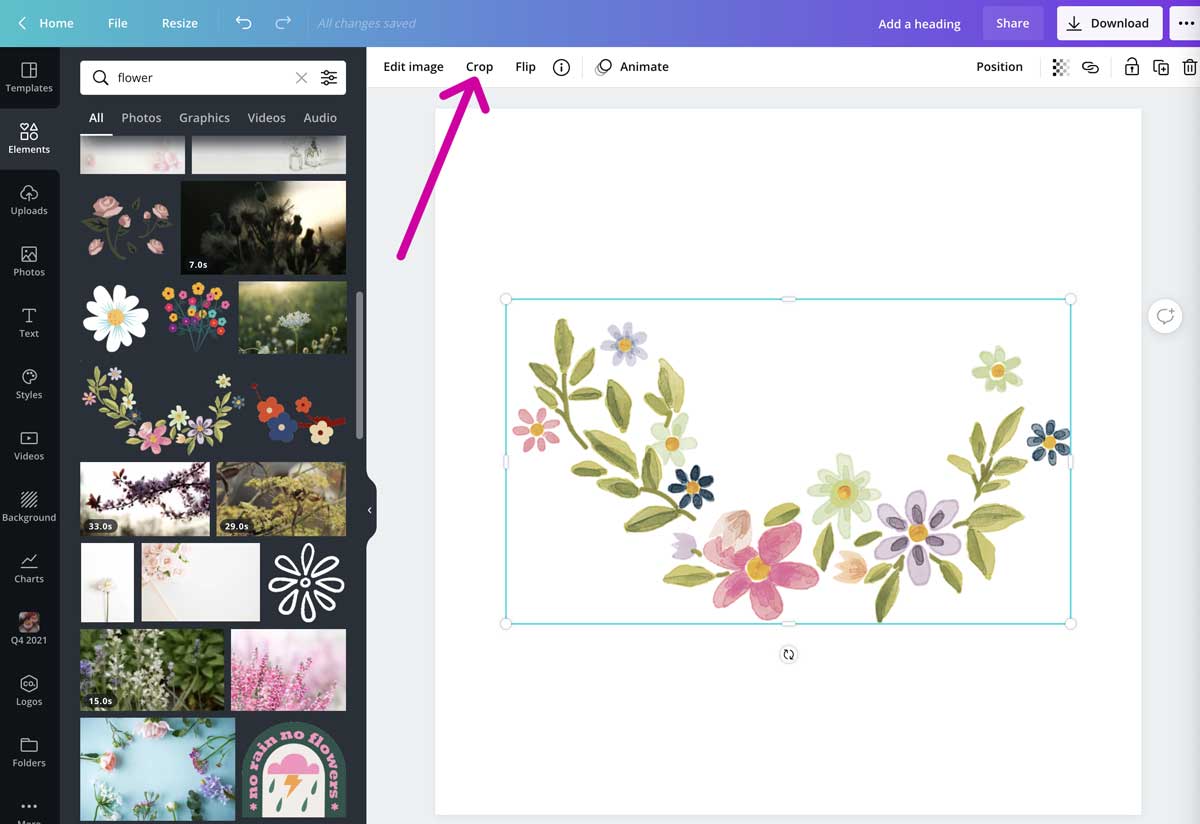
So, by double clicking the element or using the Crop button, you can select only a portion of the image.
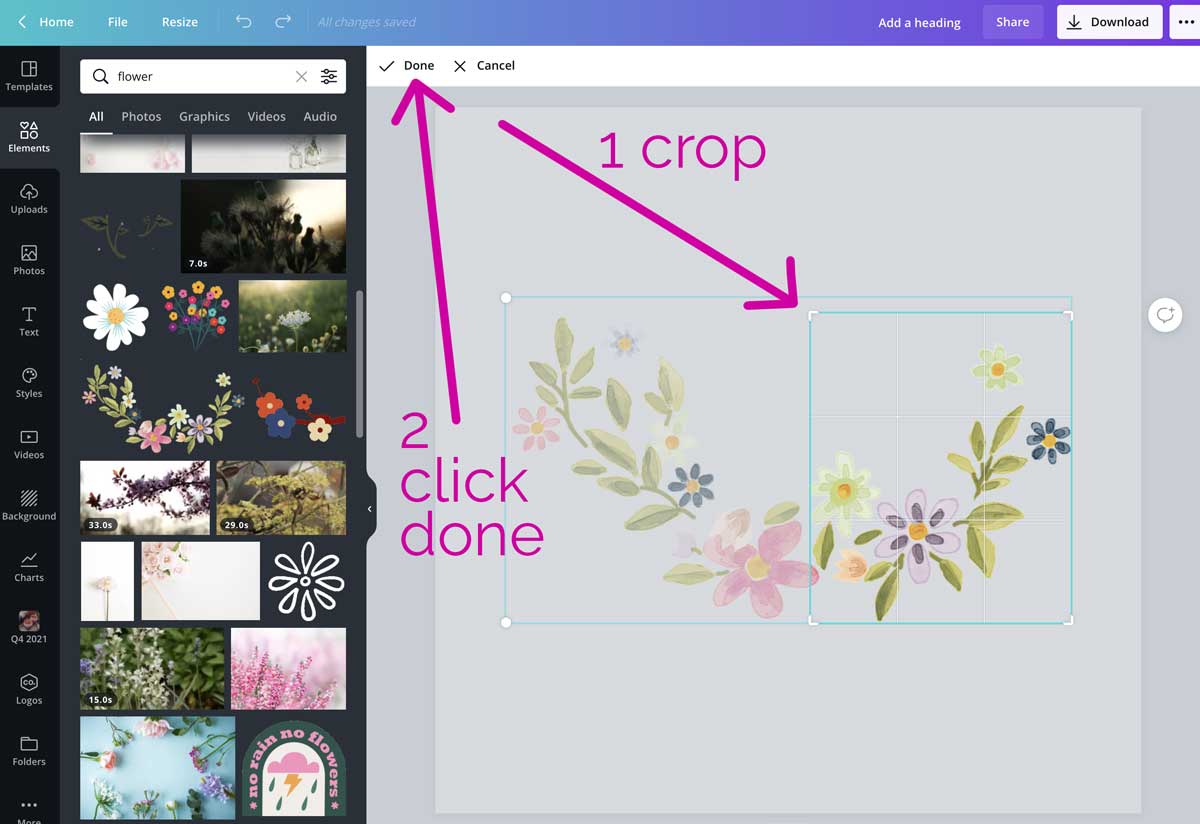
Then hit Done and the rest of the image will vanish.
You can then resize as you want with the white dots, or move the image portion around.
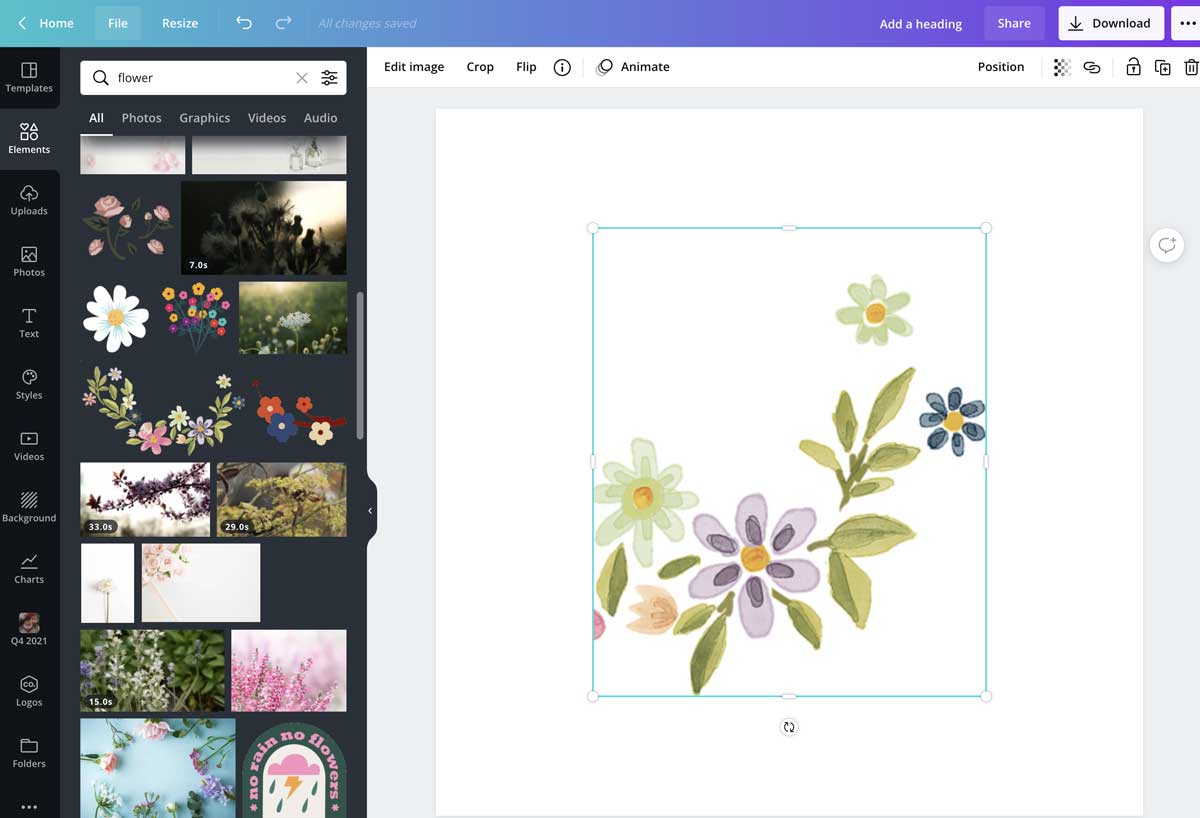
The only things you can’t crop are GIFs and embedded images.
How to edit a cropped image in a template
There are loads of great templates for Canva, both in the app, and available elsewhere. These usually come with grids or frames in them for images.
But you can still crop the image within those elements to get it just right.
Let’s take this birthday template with our kitten in it.
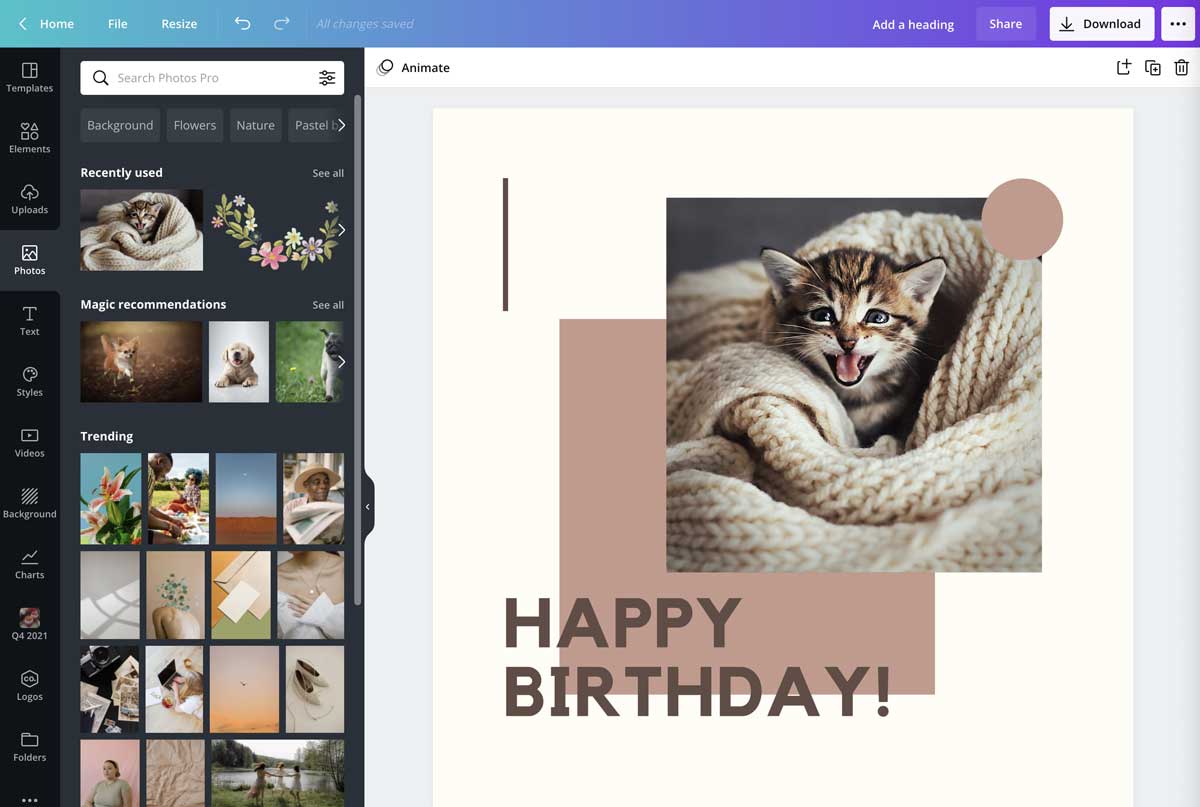
Then use the white dots to make the photo larger within the gridded crop box.
This makes for more kitten and a bit less scarf.
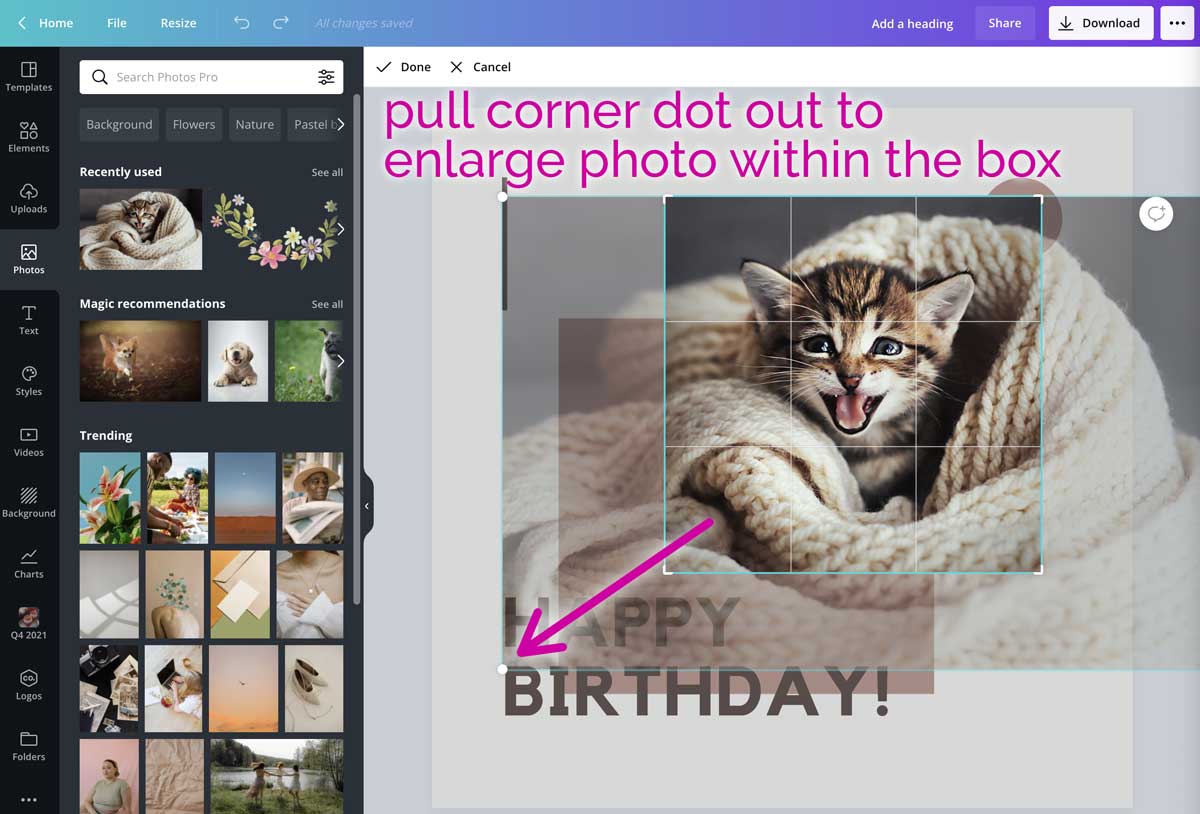
Once you have the right part of the image in the grid, just hit Done and you get the finished result.
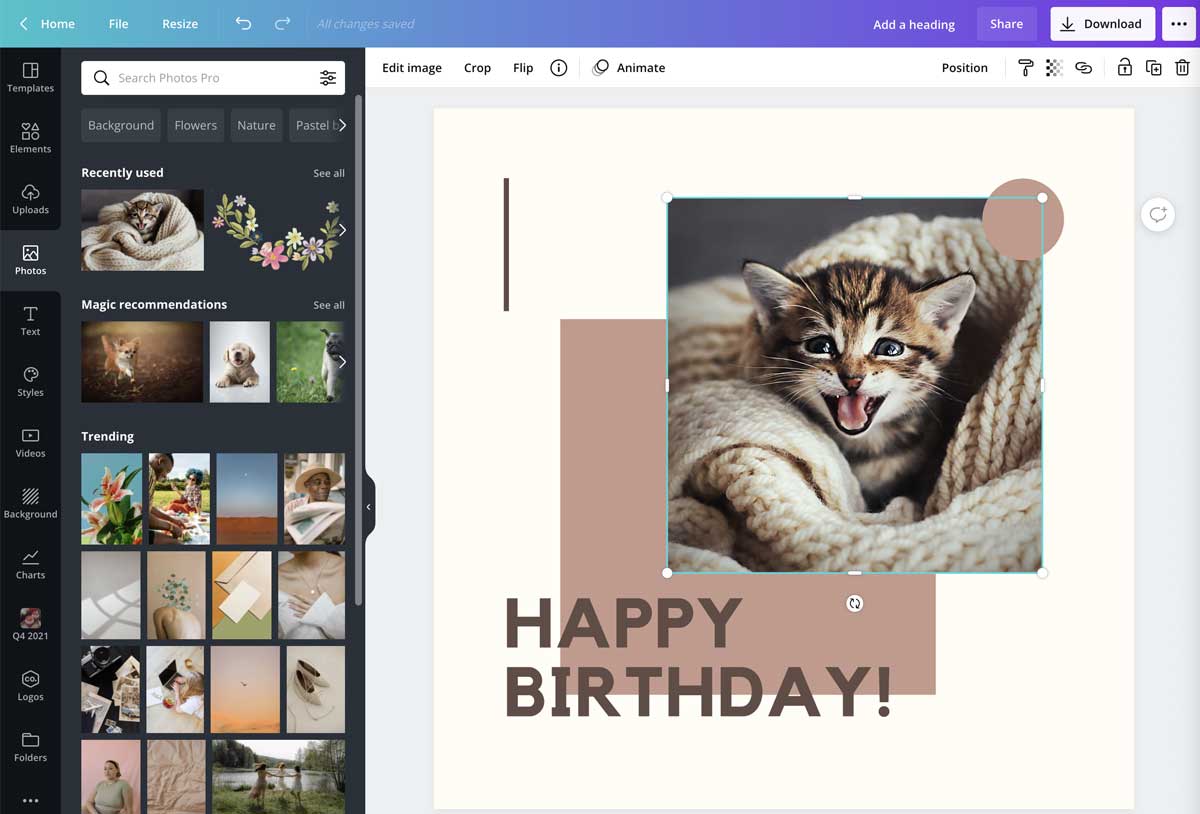
You can also use the usual effects, filters, and even flip the image at this point to get it just right. The rest of the template will remain unchanged if you’re just editing the photo itself.
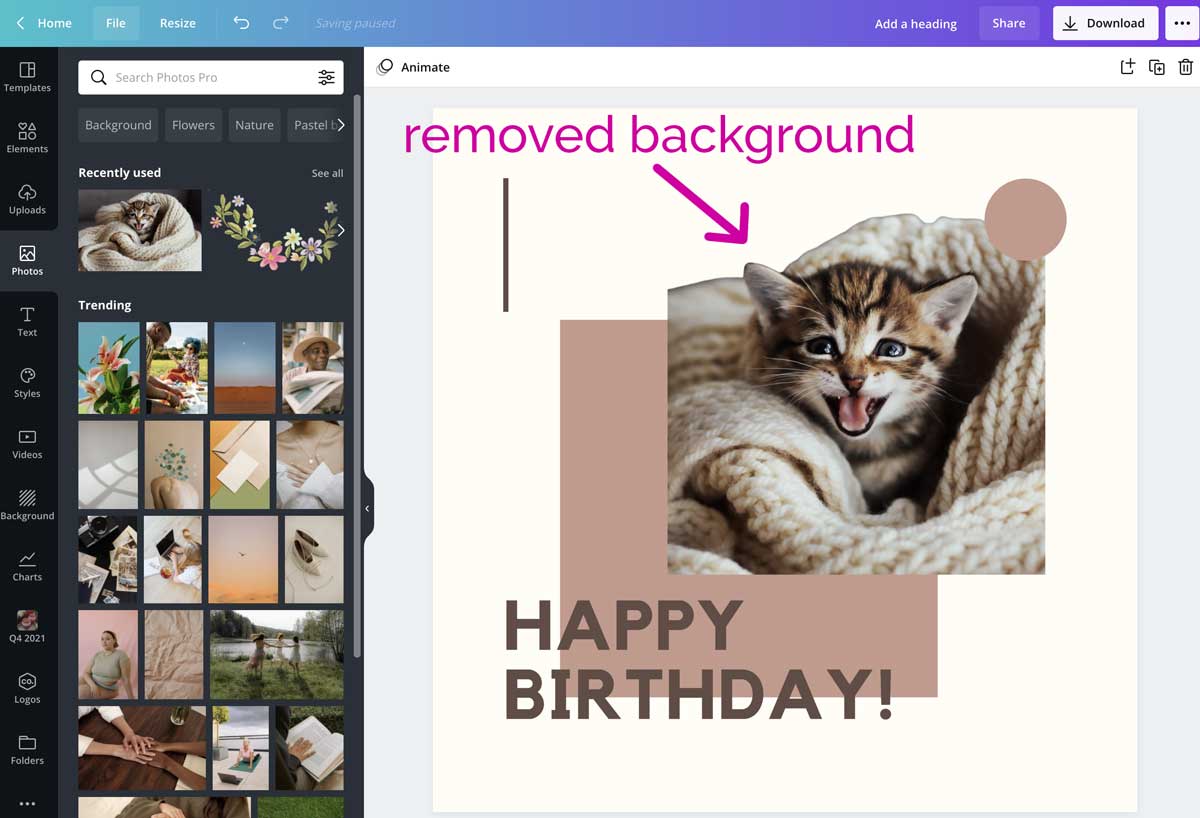
If you have Canva Pro, you could also use features such as the background remover to further make the photo unique.
Learn more about how to remove a background in Canva.
Cropping effectively in Canva
Unlike Photoshop, Canva doesn’t work with an image layer – the entire image is a single layer. But you can easily edit elements in a design by using the crop tool to edit a photo.
Design elements can also be cropped in different ways to make them unique.
The many template design options come with ready-made spaces for photos – and these can also have a crop option applied to them.
So, there are many ways to crop in Canva for your perfect design!
Disclosure: If you purchase a plan, I may earn a commission, at no cost to you.
Want more tutorials?
Learn keyboard shortcuts and more in my ultimate guide on how to use Canva!
The post How to Crop in Canva for Picture Perfect Results appeared first on Louise Myers Visual Social Media.





0 Commentaires